
Getting Started
Welcome to United Motorsports Association. This page will help you get set up and oriented for your career.
Join the Discord
Please make sure before you sign up on the website, you join the Discord Server! When you join the server, please navigate to the #register channel and submit a registration ticket. This step is integral until we set up an automated Discord bot.
Account Creation
- Navigate to the United Motorsports Association website.
- From anywhere on the website, scroll all the way up and look at the top right for a
Registerbutton. Selecting this button takes you to the registration page. - When registering, it is extremely important to make sure your Email Address and iRacing Customer ID are correct. The website currently does not verify and cross reference these two fields and any changes/updates to correct them will need to be done via a Support Ticket on the Discord Server.
- After submitting your registration, you will be taken to your
Driver Onboardingpage. This page requires you to submit information for your driver profile. Make sure to select at least 1 series of interest at the bottom or the driver onboarding will fail.
TIP
If you want to show up in free agency for organizations to offer you a contract, ensure that Open to Offers is checked in your driver onboarding. This can be updated later on the Driver Info page.
- After your onboarding is submitted, you now have access to the dashboard.
In the next section, we will go over the basics of the dashboard and how to navigate.
Dashboard Navigation
The dashboard is broken down into three main sections - Top Navigation, Middle Navigation, and the Viewing Pane. Review the color-coded screenshot below for a breakdown.
Desktop and Mobile Navigation
The screenshot below is a desktop reference. On mobile, the top dashboard navigation is accessed through the hamburger menu, and the same workspace options are available there.
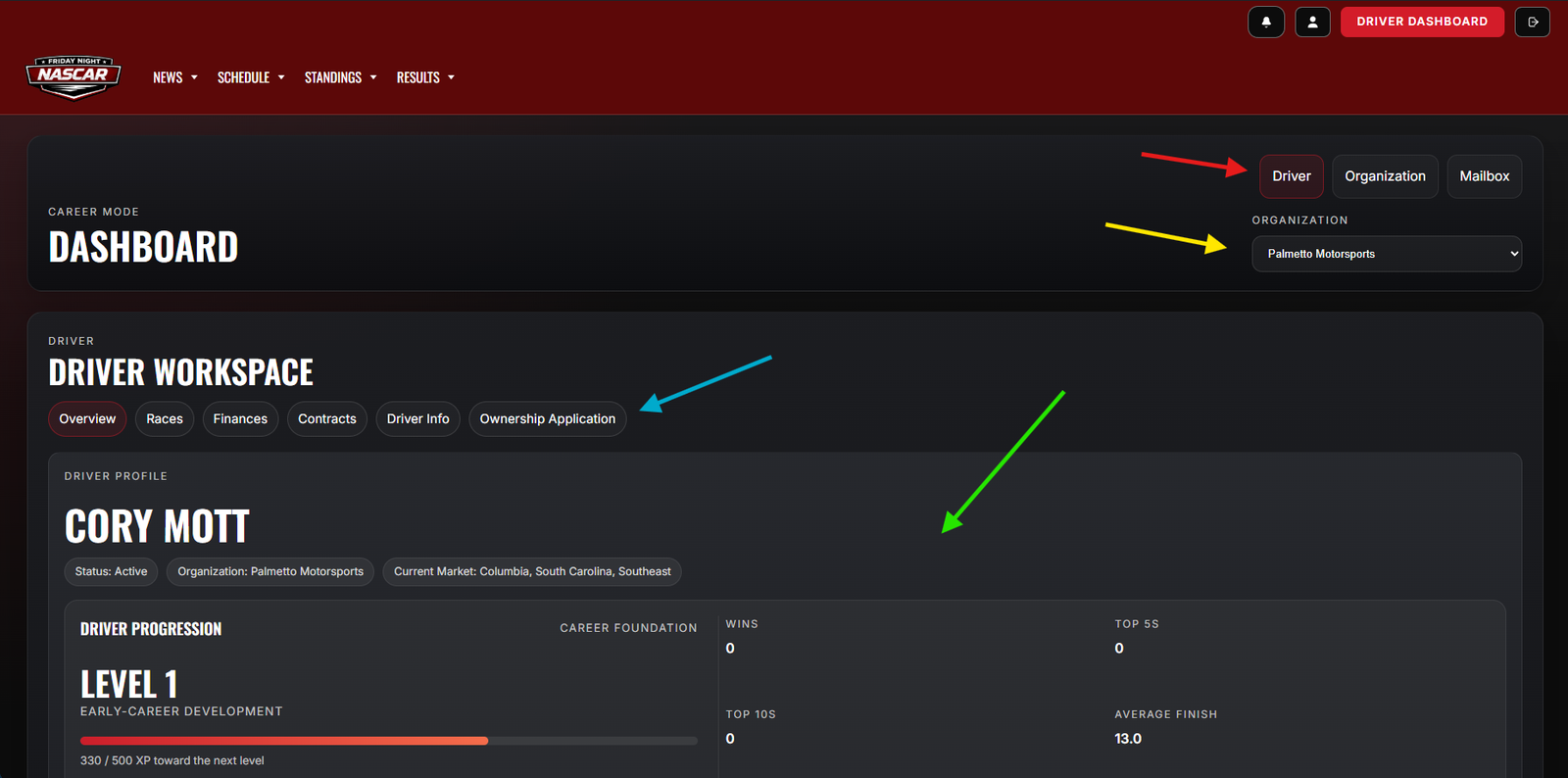
- Red Arrow: Top Navigation - this is used to switch between your Driver dashboard, Organization dashboard, League workspace, and Mailbox views. Changing views here will change all content beneath it to the relevant system.
- Yellow Arrow: Organization Selector - This allows you to change what organization you are currently looking at (if you are a part of multiple). This will not display if you are not a part of an organization.
- Blue Arrow: Middle Navigation - This navigation bar changes the content of the Viewing Pane - this is how you navigate amongst the various subsystems on the driver and organization dashboards.
- Green Arrow: Viewing Pane - all system information will display inside of this pane.
Next Steps
Your next steps depend on if intend on being an organization owner, or just a driver.
- If you intend on being an
Organization OwnerorOwner-Driver, proceed to the Organization Creation page. - If you intend on only being a driver, head over to the Discord Server and post in the
#recruitmentchannel in an attempt to get in contact with organization owners looking for drivers.